AiMedia for Lightroom Classic
Version 1.1.0 · Windows and macOS · Lightroom Classic 13 or later
A zip file. The plugin is free; describing a photo costs one credit, as on the site.
The AiMedia plugin describes the photos you select in Lightroom Classic and writes the title, the caption and the keywords straight into your catalog. You upload nothing by hand and copy nothing back. Every run is also kept on the site as a batch, and the CSV for your stock is saved straight from Lightroom.
This page describes version 1.1 of the plugin. If your Plug-in Manager shows 1.0, update the plugin first: three of the commands below are new.
On this page:
- Install the plugin
- Connect your account
- Where the commands are
- What each command does
- The describe dialog, field by field
- Editorial photos: place and date
- How your edits reach the site
- What is sent, and how long it is kept
- Sending the photos to stocks
- If something goes wrong
- Update the plugin
- Remove the plugin
- Run the commands from the keyboard
Install the plugin
- Press Download the plugin at the top of this page. You get a zip file whose name starts with
aimedia-lightroom. - Unpack it. In Windows, right-click the file and choose Extract All: you get a folder named after the zip, and
aimedia.lrpluginis inside it. On a Mac, double-click the file: you getaimedia.lrpluginitself (there it looks like a single file). - Put
aimedia.lrpluginwhere it will stay, for example in your Documents folder. Lightroom remembers the path to it: if you move or delete the folder later, the plugin stops working. - In Lightroom Classic open File > Plug-in Manager.
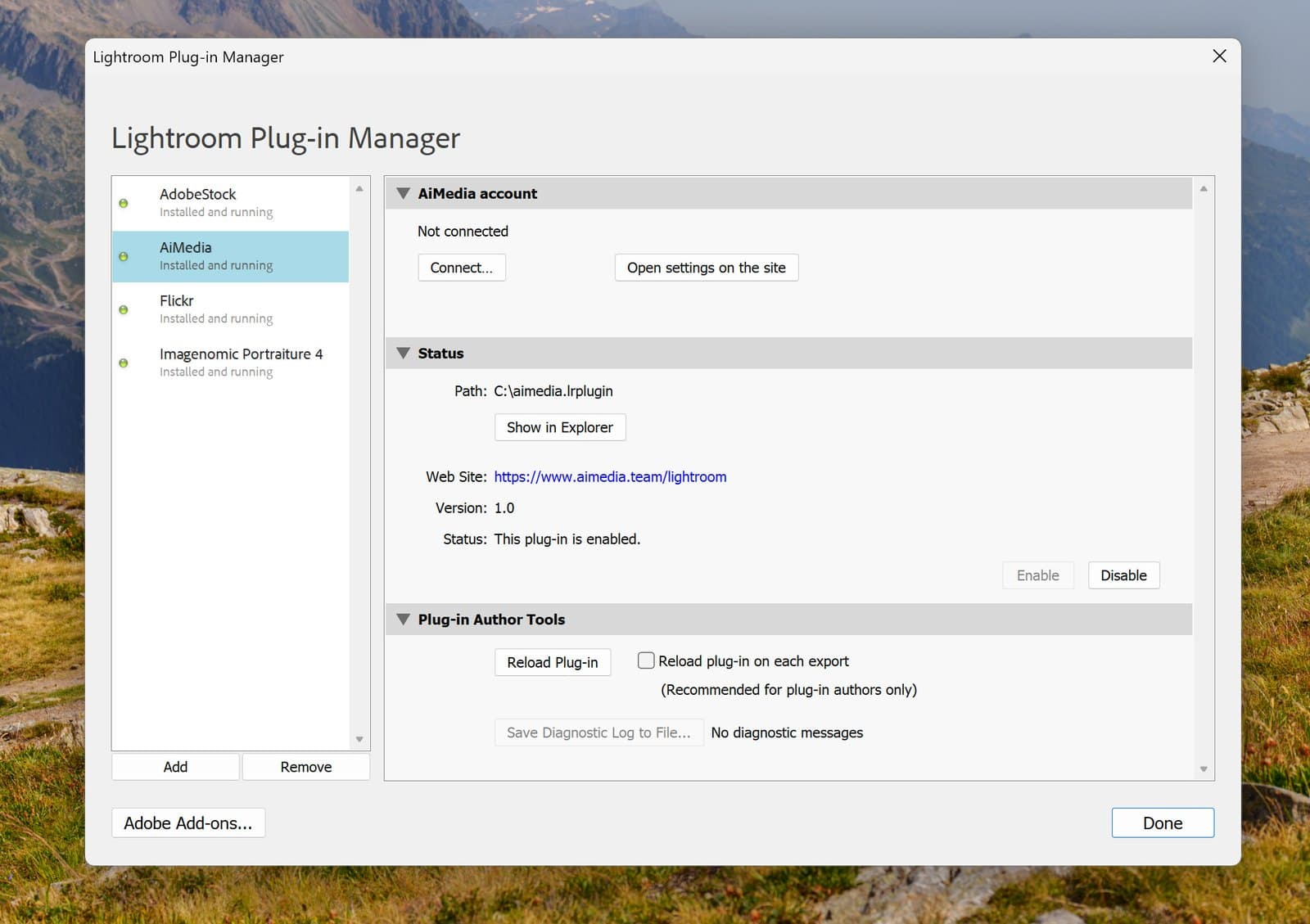
- Press Add under the list on the left, select
aimedia.lrpluginand press Add Plug-in. - AiMedia appears in the list on the left. Lightroom marks it "Installed and running".
Connect your account
The plugin works under your AiMedia account: it uses your credits and your text settings, and its results appear in your batches.
- In the Plug-in Manager select AiMedia in the list. On the right, find the section AiMedia account. It says "Not connected".
- Press Connect…. Your browser opens a page of aimedia.team with a short code, and Lightroom shows the same code in a small window. If no page opened, that window tells you the address to type.
- Sign in if the page asks you to, with your e-mail and password or with Google. If you have no account yet, create one there: the first 200 credits are free.
- Check that the code on the page is the one Lightroom shows, then press Allow.
- Go back to Lightroom. Within a few seconds the section shows "Connected", your e-mail and your credits.
You do this once on each computer. The computers connected to your account are listed on the site, under Settings.
Where the commands are
The plugin adds seven commands. You find them in two menus:
- File > Plug-in Extras, in every module.
- Library > Plug-in Extras, in the Library module.
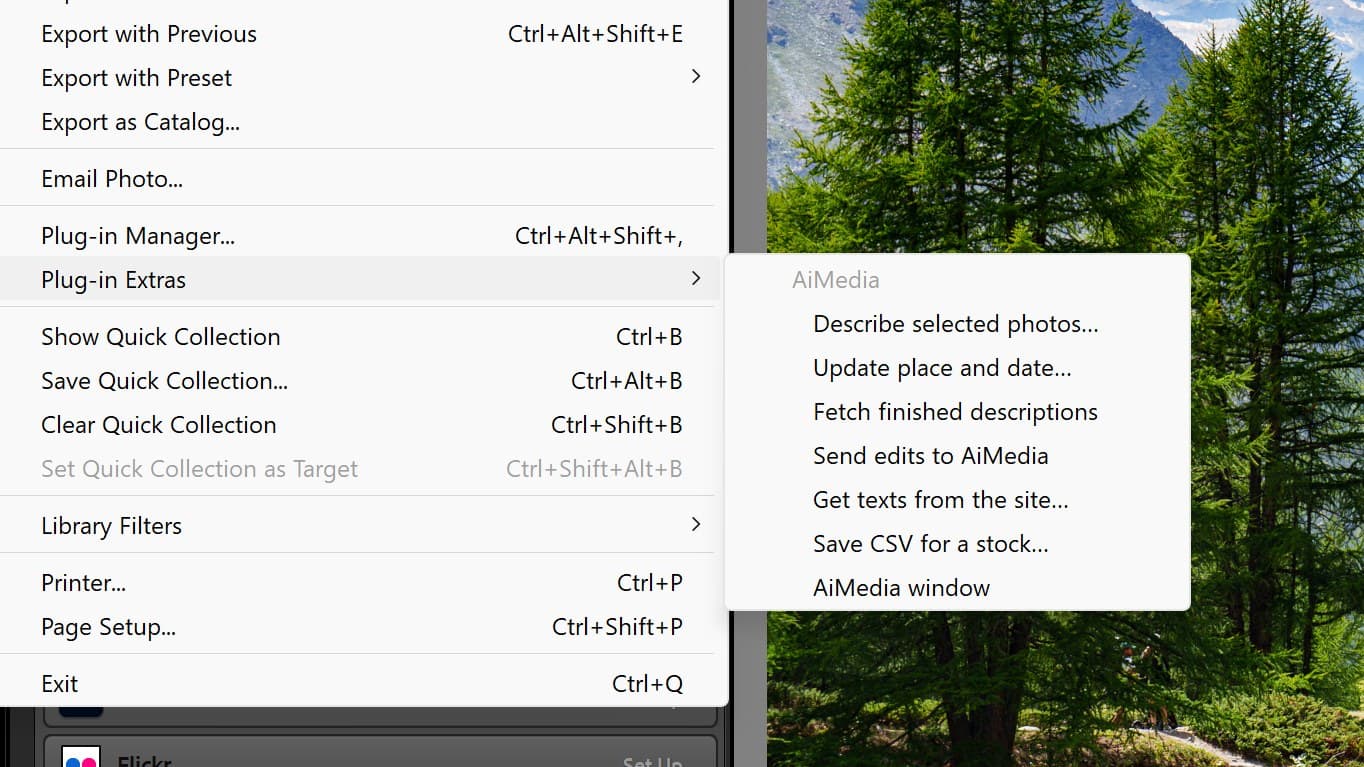
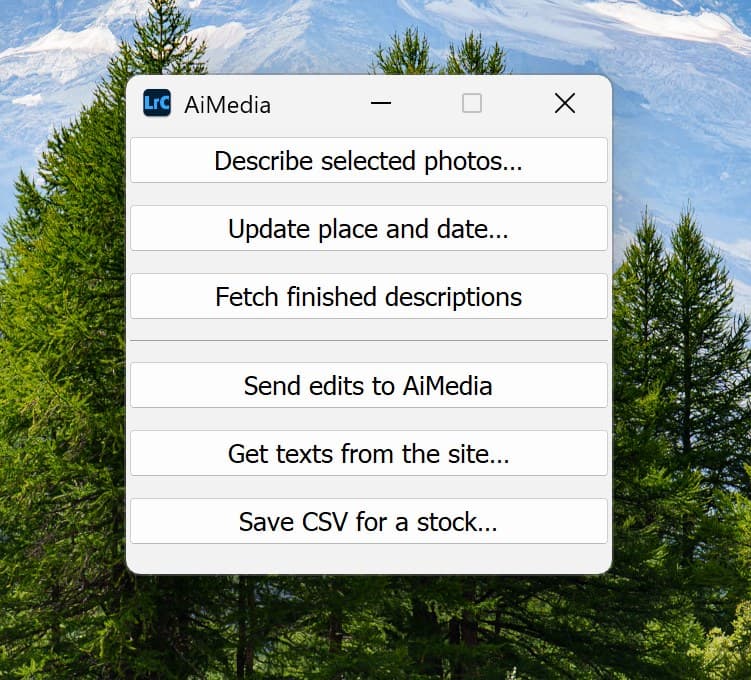
The seventh command, AiMedia window, opens a small window with the other six as buttons, in two groups: describing photos, and the exchange with the site. It stays above Lightroom in every module until you close it. Choose it once, then work with the buttons: select photos, press a button.
What each command does
Describe selected photos…
Press it when the photos you want described are selected.
- A dialog opens (the next section explains every field). Press Describe.
- The plugin makes a small JPEG copy of each photo and sends it. Lightroom shows a progress bar, "AiMedia: preparing and sending photos", then a second one, "AiMedia: describing photos". You can go on working meanwhile.
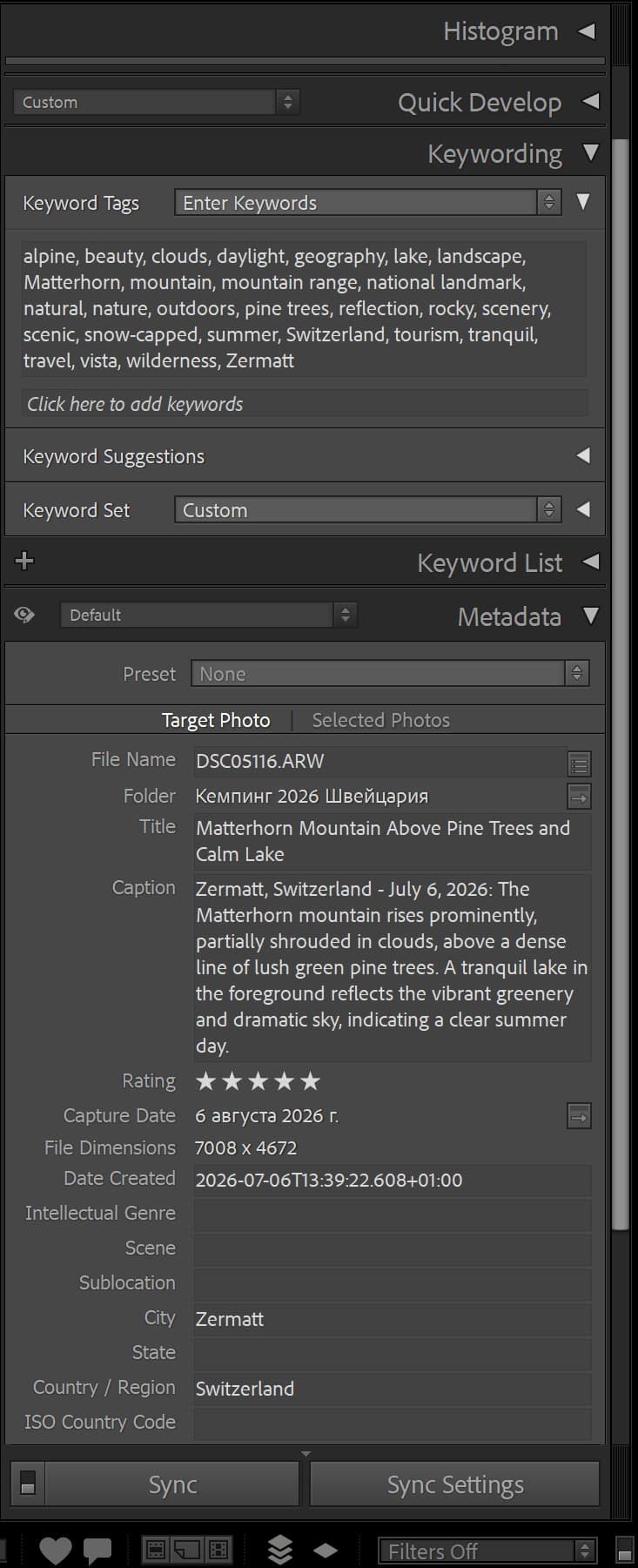
- The texts appear in Lightroom as they are ready: the Title, the Caption and the Keywords of each photo.
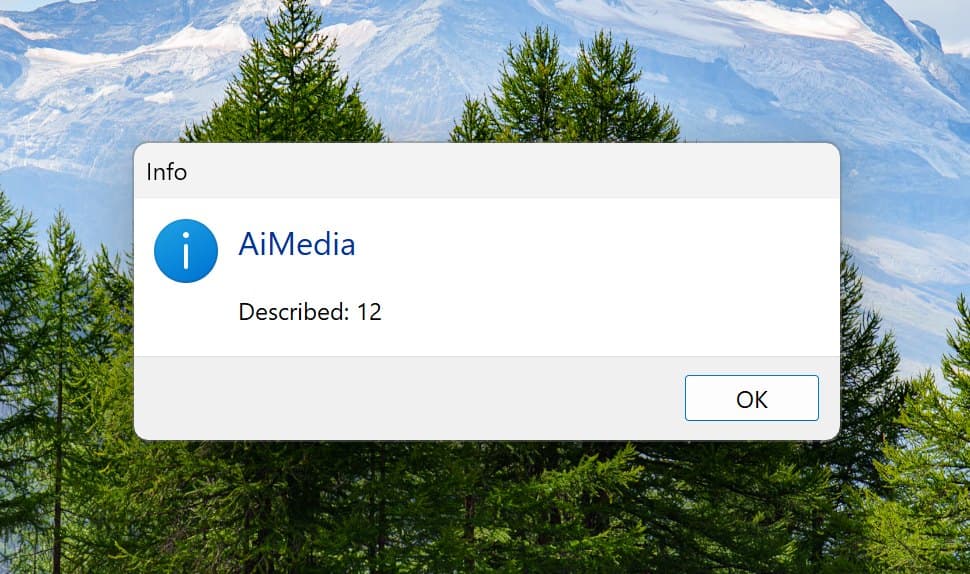
- A message sums up the run, for example "Described: 40".
What it costs: one credit per photo. The dialog shows the total before anything is sent.
What to know before you press it:
- Keywords a photo already had are replaced by the new ones.
- Videos in the selection are skipped; the message says how many.
- If you close the second bar, quit Lightroom or lose the connection, nothing is lost. The site finishes the photos it received, and Fetch finished descriptions brings their texts later.
Update place and date…
Press it when photos are already described and their place or date is wrong or has changed. No credits are spent.
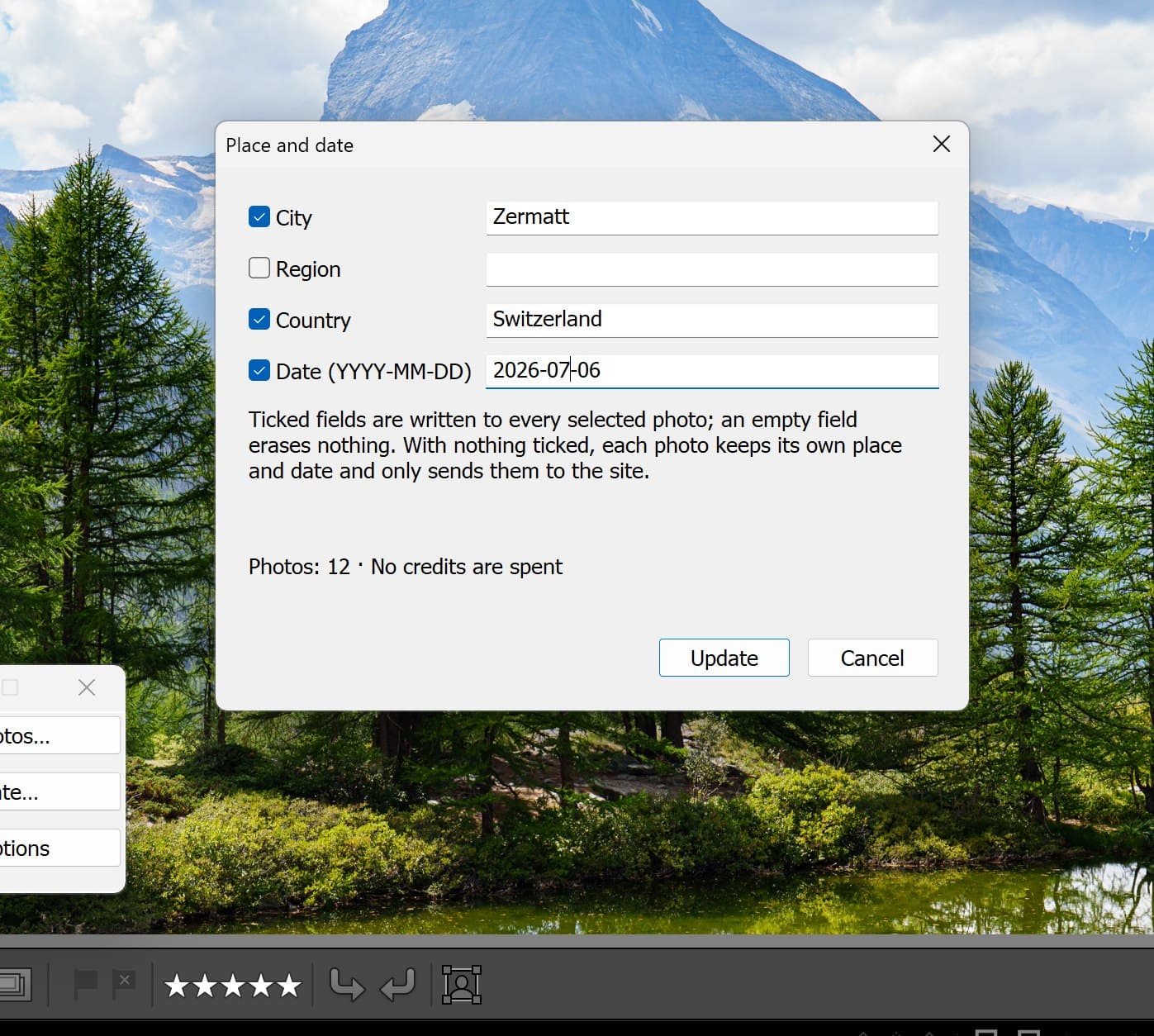
- A dialog shows City, Region, Country and Date, each with a tick box. A field shows the value all selected photos share; it is empty when they differ.
- Type the right value. The tick sets itself. Only ticked fields are changed, and an empty field erases nothing.
- Press Update. The ticked values are written into every selected photo in Lightroom and sent to the site.
For editorial photos the start of the caption and the place keywords change to match; the rest of the text stays. A caption you edited by hand is sent to the site first, then gets the new place like the others. For royalty-free photos only the date is sent.
If the selected photos have different values in a field you ticked, the plugin first tells you how many would be replaced and asks.
Fetch finished descriptions
Press it when a run was interrupted and its message said "Still being described". It needs no selection and no credits are spent: it writes the texts of every photo the site has finished since.
Send edits to AiMedia
Press it when you have changed titles, captions or keywords in Lightroom and want the site to have them now. It needs no selection, and no credits are spent.
The plugin looks through every photo of the catalog that was described from Lightroom and sends the ones you changed. A message says how many, for example "Edits sent to the site: 3", or "No edits to send."
You rarely need this command: every other command of the plugin sends your edits first, on its own. Use it when you want the site up to date without doing anything else.
Get texts from the site…
Press it when you changed a photo's texts on the site and want the same texts in Lightroom. No credits are spent.
- Select the photos and press the command. The plugin compares each photo with the site.
- If nothing differs, it says "The texts match the site." and changes nothing.
- Otherwise it asks once, and says how many photos will get the site's texts. If you also changed some of them in Lightroom and those edits were not sent yet, it says how many of your edits would be lost. Press Replace, or Cancel to keep Lightroom as it is.
The title, the caption and the keywords are replaced. For editorial photos the city, the region, the country and the date are taken from the site too, so that the caption and the fields say the same; the question tells you when that happens.
This is the only way texts travel from the site to Lightroom. Nothing comes back by itself.
Save CSV for a stock…
Press it when the photos are described and you are about to upload them to a stock. No credits are spent.
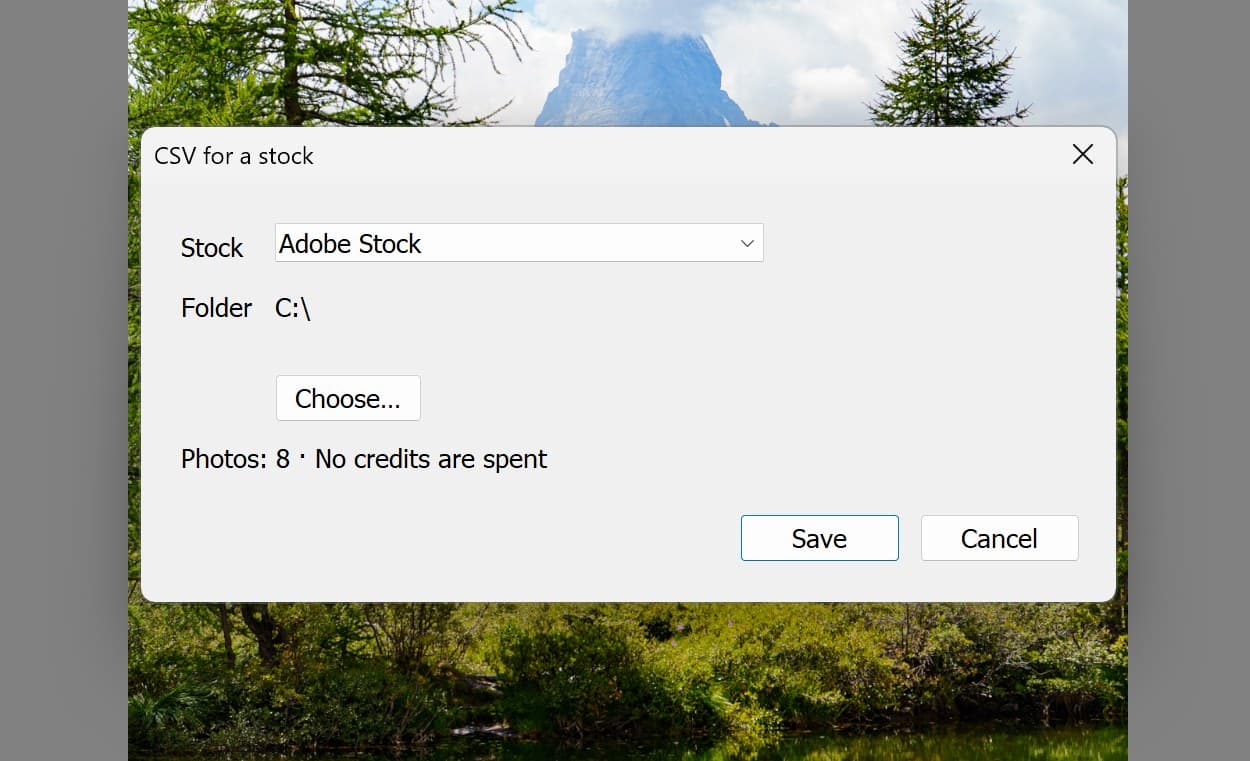
- Select the photos and press the command. A window opens.
- Stock: choose the stock. The window starts on the one you used last, here or on the site.
- Folder: where the file is saved. The plugin remembers it; press Choose… to pick another. The first time it is the Desktop.
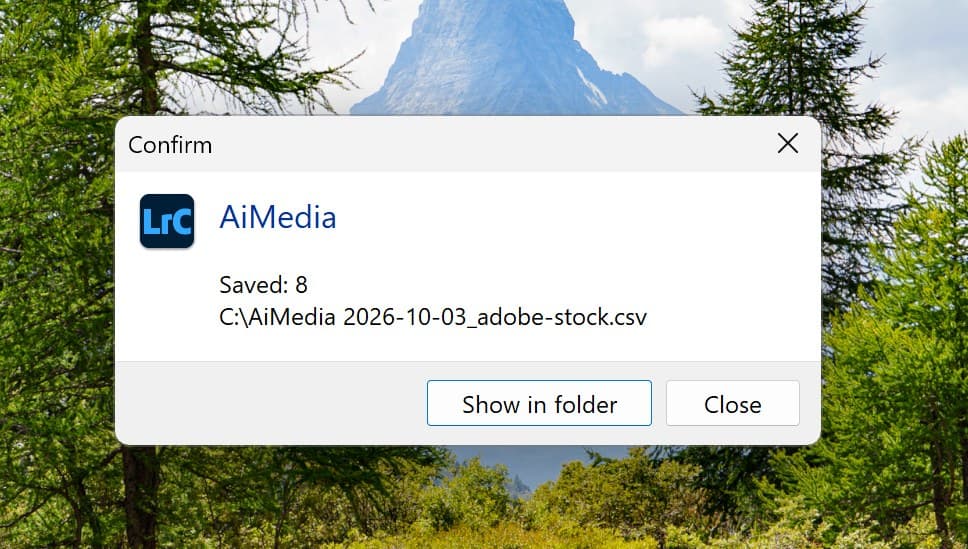
- Press Save. A message shows where the file is. Show in folder opens that folder with the file selected.
The file is named after the shoot and the stock, for example Zermatt 2026_adobe-stock.csv. When the selected photos come from several shoots, the date stands in for the shoot name. One file holds photos of one mode: if royalty-free and editorial photos are selected together, the plugin says how many of each there are and asks you to select one mode.
Why a CSV, when the texts are already inside the files: see Sending the photos to stocks.
The describe dialog, field by field
- Shoot name: the name of the batch on the site. The plugin suggests the folder or collection you are in; change it if you like. Photos you describe later under the same name join the same batch.
- Describe as: choose Royalty-free for ordinary stock photos; their texts carry no brand names. Choose Editorial for photos of real places and events; the caption then starts with the place and the date, for example "Zermatt, Switzerland - August 2, 2026:", and the place is added to the keywords. A shoot described both ways becomes two batches on the site, "Name" and "Name — editorial".
- AI context (optional): a line about the shoot, such as the location, the event or the season. It helps describe the photos accurately. Example: "Camping trip in the Swiss Alps in August."
- For photos without a place or date: shown for Editorial only, and only when some selected photos lack a city, a country or a date. What you type here goes to those photos, and is written into their fields in Lightroom too.
- Selected photos that already have texts: shown when some do. Replace describes them again: their texts and keywords are removed and written anew. Describe only photos without texts leaves them untouched and charges nothing for them.
- Photos · Credits · Balance: what this run will cost and what you have. If the credits are not enough, the plugin says so and sends nothing.
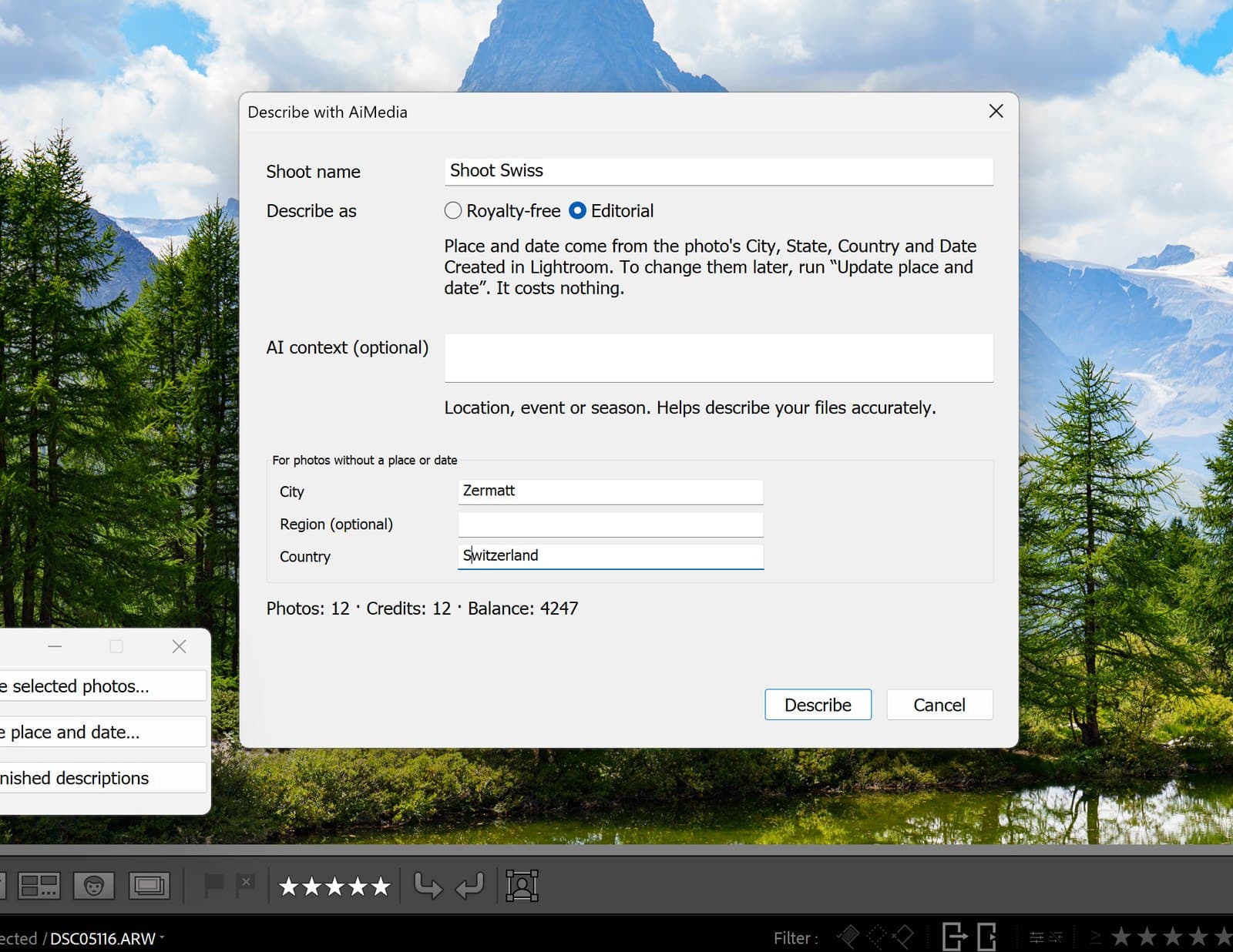
The language of the texts, their length and the number of keywords are set once, in Settings on the site. The plugin uses them.
Describing a photo again in the other mode moves it to the other batch and costs a credit, like any description.
Editorial photos: place and date
For an editorial photo the plugin takes the place and the date from the photo's own fields in Lightroom: City, State, Country / Region and Date Created. When Date Created is empty, the capture date is used.
Lightroom shows these fields only when asked. To have them in view:
- Go to the Library module and open the Metadata panel on the right. At its top the set Default is chosen.
- Press Customize… at the bottom of the panel.
- In the window that opens, find the group IPTC Image, tick Date Created, City, State and Country / Region, and press Done.
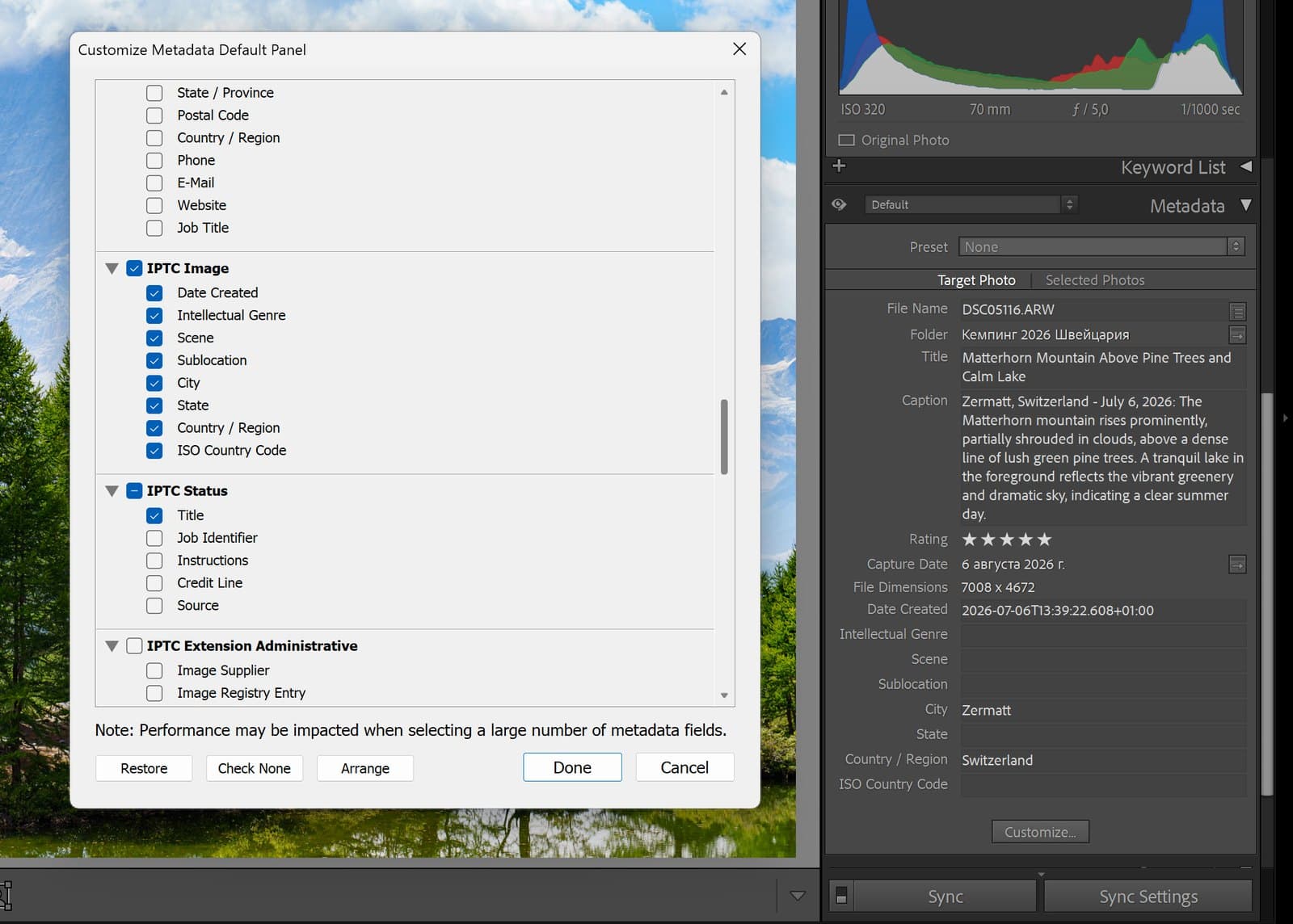
The fields stay in the panel from then on. Another way to see them, with nothing to set up: choose IPTC in the pop-up menu at the top of the panel.
You can fill them there, for one photo or for several selected at once. Then run Update place and date… and press Update with nothing ticked: the plugin sends the fields as they are and updates the captions.
Changing the date changes Date Created, not the capture time, so the photo keeps its place in the filmstrip.
How your edits reach the site
Photos described from Lightroom are edited in Lightroom. Change a title, a caption or keywords there as you always do. The plugin notices which photos you changed and sends them to the site, so the batch on the site and the CSV carry your words.
- When. Every time you run a command of the plugin, before the command does its own work, and when you press Send edits to AiMedia. Until then the site shows the previous texts: Lightroom does not tell a plug-in when you type, so nothing is sent in the background.
- What. The title, the caption and the keywords; for editorial photos also the place and the date from the photo's fields.
- No question, no credits. The plugin does not ask before it sends, and no credits are spent.
- The order of keywords stays. The keywords keep their order by importance on the site. A keyword you add goes to the end; one you remove disappears.
- Editorial captions. Leave the start of the caption, "Zermatt, Switzerland - August 2, 2026:", as it is. To change the place or the date, use Update place and date…, or change the photo's fields and then run that command with nothing ticked. A change in the fields alone is not sent. A start typed by hand in another form is taken for ordinary text, and the place then appears twice.
- Place keywords. For an editorial photo a keyword that is the photo's own city, region or country is not kept as a keyword on the site: the place is added from the fields.
Changes made on the site do not reach Lightroom by themselves, and they are replaced the next time you change that photo's texts in Lightroom. To bring them over, use Get texts from the site….
What is sent, and how long it is kept
- A JPEG copy of each photo, 1280 pixels on the long side. Your originals and RAW files never leave your computer.
- The file name and the date of each photo; for editorial photos also the city, the region and the country.
- The title, the caption and the keywords of a described photo when you change them in Lightroom.
- The shoot name and the AI context you typed.
The copies and the texts are kept on the site with their batch for 90 days and then deleted. The texts in your Lightroom catalog stay. More in the privacy policy.
Sending the photos to stocks
Export the photos as you always do. The title, the caption, the keywords and the place are inside each file, provided the export includes all metadata (the Metadata section of Lightroom's Export dialog).
One thing Lightroom does on its own: it writes keywords into a file in alphabetical order. Stocks that weigh the first keywords, like Adobe Stock, lose the order by importance that way. The CSV keeps it. Save it without leaving Lightroom: select the photos and press Save CSV for a stock…. The same file can be downloaded from the batch on aimedia.team. See Adobe Stock: titles, keywords and CSV.
If something goes wrong
| The plugin says | What to do |
|---|---|
| AiMedia is not connected | Open File > Plug-in Manager, select AiMedia and press Connect. |
| Not enough credits | Nothing was sent. Buy credits on the site, or select fewer photos. |
| No connection to AiMedia | Check the internet connection and try again. Photos already sent are safe. |
| Still being described | Wait a few minutes and press Fetch finished descriptions. |
| AiMedia is still working on the previous command | Wait for the running command to finish. |
| Nothing is selected | Select photos in the Library grid first. |
| Only videos are selected | The plugin describes photos. Describe video clips on the site. |
| Edits could not be sent now | The site could not be reached. Nothing is lost: the edits go with the next command. |
| Photos of both modes are selected | A CSV holds one mode. Select the royalty-free photos or the editorial ones, and save again. |
| Left out, their edits are not on the site yet | These photos were kept out of the CSV so that it does not carry old texts. Run the command again in a few minutes. |
| The file could not be written into this folder | Choose another folder, one with only Latin letters in its path. |
| Not found on the site | The photo or its batch was deleted on the site, or the batch is older than 90 days. Describe the photos again. |
Something else? Write to support@aimedia.team.
Update the plugin
When a newer version comes out, the AiMedia account section of the Plug-in Manager says so and offers the download.
- Download the new zip and unpack it, as when you installed.
- Quit Lightroom.
- Replace the old
aimedia.lrpluginfolder with the new one, in the same place. - Start Lightroom. The connection to your account stays, and nothing in your catalog changes.
Remove the plugin
- In Lightroom open File > Plug-in Manager and select AiMedia in the list.
- Press Disconnect in the AiMedia account section. Do this first: removing the plugin alone leaves this computer connected to your account, and a plugin added again later would be connected at once. Disconnect removes the connection on the site too.
- Press Remove under the list on the left. Lightroom asks nothing: AiMedia disappears from the list and from the menus.
- Delete the
aimedia.lrpluginfolder from your disk.
The titles, captions and keywords the plugin wrote stay in your catalog and in your files: they are ordinary Lightroom texts. The batches on the site stay too, until you delete them there or 90 days pass.
Run the commands from the keyboard
The plugin's commands can be started without the mouse. How depends on your system.
In Windows every command has its own letter:
- Press Alt and open the File menu.
- Choose Plug-in Extras.
- Press the command's letter: D for Describe selected photos, U for Update place and date, F for Fetch finished descriptions, S for Send edits to AiMedia, G for Get texts from the site, C for Save CSV for a stock, W for AiMedia window. Windows underlines the letter in the menu.
On a Mac Lightroom gives a plug-in's commands no letters, but you can give a command a shortcut of your own:
- Open Apple menu > System Settings > Keyboard > Keyboard Shortcuts > App Shortcuts.
- Press the Add button and choose Adobe Lightroom Classic.
- Type the command's name exactly as the menu shows it, for example
Fetch finished descriptions. A name that ends with an ellipsis is typed with three periods. - Press the key combination you want, and confirm.